
.png?width=48&height=48&name=Group%201%20(3).png)
























31 March, 2026

Proven Tips to Block Screen Time Kids Effectively

Key Highlights
- Utilize built-in parental controls on Apple and Android devices to manage tablet usage effectively.
- Set clear screen time limits and daily schedules to create a healthy balance between online and offline activities.
- Use parental control apps like Google Family Link to monitor your child's device and set content restrictions.
- Adjust content and privacy settings to block access to harmful content and prevent unwanted purchases.
- Establish open communication with your child about online safety and the reasons behind screen time rules.
- Create a family routine with scheduled no-screen times to encourage physical activity and other interests.
Introduction
Tablets are fantastic tools for learning and fun, but it's natural to worry about how much screen time is too much. Are you wondering how to ensure your child's digital world is safe and balanced? Setting time limits and managing what they see online is crucial for their digital wellbeing. This guide offers straightforward tips on using parental controls, setting boundaries, and creating a healthier relationship with technology. You will learn practical ways to protect your child from inappropriate content and encourage positive digital habits from a young age.
Top Parental Control Apps for Limiting Screen Time
While built-in settings are helpful, parental control apps offer more comprehensive features for managing your child’s device. These apps let you set screen time limits, monitor app usage, and protect online safety. For families with young children on Android devices, Google Family Link is a free option that integrates well with other Google products.
With these tools, you can create a family group, manage accounts, and adjust safety settings from your phone. Using a parental control app encourages healthy habits and supports your child’s digital wellbeing. Now, let’s compare these apps to see which fits your family best.
Feature Comparison of Popular Apps in Australia
When selecting a parental control tool, compare the features of top apps. Many offer free versions with basic controls; paid plans unlock advanced options like detailed reports and stronger privacy settings. For example, Google Family Link is a solid free choice for Android, offering screen time and app limits.
Some services provide deeper monitoring—ideal for older kids. Choose what fits your family’s needs, from simple time management to full digital oversight.
Here’s a quick comparison of popular parental control apps:
|
Feature |
Qustodio |
Net Nanny |
Google Family Link |
|---|---|---|---|
|
Core Functions |
Web filtering, time limits, location tracking, call/SMS monitoring |
Content filtering, screen time management, social media monitoring, profanity masking |
App approval, screen time limits, device location, Play Store restrictions |
|
Best For |
Detailed activity reports |
Real-time content analysis |
Free, comprehensive Android control |
|
Cost |
Paid plans |
Paid plans |
Free |
Ease of Use and Effectiveness for Families
The best parental controls are easy to use, making screen time management simple and stress-free. Choose an app with an intuitive interface for quick adjustments to settings and limits. A child-safe app should offer peace of mind—not frustration.
When comparing features, look for a straightforward setup: Can you link your child’s device and start managing it right away? The most effective tools fit seamlessly into your family routine and support consistent rule enforcement.
Key ease-of-use factors:
- A clear dashboard showing device usage at a glance
- Simple navigation for quick changes
- Remote management from your own device
Tips to Select the Best App for Your Child's Needs
Choosing the right parental controls depends on your child’s age and maturity. For younger children, focus on apps that block harmful content and restrict app access. For teens, look for features like communication and location monitoring. Identify your main concerns before you begin.
Decide if your goal is to block certain apps, filter web content, or set time limits. Read reviews and try free versions to find the best privacy settings and features for your family. Involving older children in the process can build trust.
Tips for choosing parental controls:
- Define your goals (time limits, content filtering, etc.).
- Match features to your child’s age and habits.
- Ensure compatibility with all devices.
- Compare free and paid versions to see what you need.
Setting Daily Usage Limits on Tablets
One of the most effective ways to manage your child's device usage is by setting daily screen time limits. Both Apple’s Screen Time and Android’s Digital Wellbeing features allow you to establish boundaries for overall device usage and set specific app limits. You can find these options in your device settings and protect them with a screen time passcode to prevent changes.
This approach to screen time management helps teach your child about a healthy balance between their digital life and offline activities. By using built-in parental controls on your child’s device, you can create a structured routine that supports their development. The following sections will provide step-by-step instructions for both iPad and Android tablets.
Step-by-Step Guide to Limit Screen Time on iPad
Apple’s Screen Time makes it easy to manage your child's iPad usage. Access it in the Settings app, set a passcode to prevent changes, and customize daily app limits by category (like games or social media). You can adjust durations for each day, helping your child build healthy tech habits.
To get started:
- Open Settings on the iPad.
- Tap "Screen Time" and turn it on.
- Select "App Limits" to set time restrictions.
- Create a "Screen Time Passcode" to secure settings.
Setting Time Restrictions on Android Tablets
Google Family Link is the main tool for setting screen time limits on Android devices. After linking your child’s account, you can manage daily limits from your phone for both tablets and phones.
The Family Link app lets you view app usage and set limits for specific apps or the entire device. You can also schedule a bedtime to lock the device at night. These features help teach balanced usage.
To set restrictions:
- Download and open Google Family Link.
- Select your child’s profile.
- Go to "Daily limit" to set screen time.
- Use "Bedtime" to schedule device lock hours.
Enabling Downtime and Bedtime Modes
Downtime and bedtime modes are powerful features for enforcing no-screen times. These tools allow you to schedule periods when the tablet is locked, except for apps you choose to allow, like phone calls. This is perfect for ensuring device usage doesn't interfere with homework, family dinners, or a good night's sleep.
You can configure these settings through Apple's Screen Time or Google's Family Link. For your family group, you can set a consistent bedtime schedule that applies to all your children's devices. This helps establish a clear routine around screen time limits and reinforces that technology has its place.
Here’s how to enable these modes:
- In Apple's Screen Time, tap "Downtime" and set a schedule.
- In Google Family Link, tap "Bedtime" to define lock and unlock times.
- Customize the allowed apps during downtime to fit your family's needs.
Blocking Access to Specific Apps and Content
Beyond just setting screen time limits, it's vital to block access to specific apps and harmful content. Parental controls are an excellent tool for this, allowing you to prevent your child from accessing inappropriate content on the internet. You can adjust privacy settings and safety settings to filter web content and block specific websites.
This level of control is essential for your child's digital wellbeing. Whether it’s certain social media apps or a type of content you deem unsuitable, a good parental control tool gives you the power to curate a safer digital environment. Let's look at how you can restrict apps and filter content on different devices.
Restricting Apps on iPads and Android Tablets
Restricting access to specific apps is essential for managing your child's device use. Both iPads and Android tablets offer built-in parental controls to block or limit apps.
On iPads, use Screen Time settings to hide or set time limits for apps. On Android devices, Google Family Link lets you approve, block, or set limits on app usage and downloads. These tools give you detailed control over your child’s tablet activity.
To restrict specific apps:
- iPad: Go to Screen Time > Content & Privacy Restrictions > Allowed Apps and toggle off the apps you want to block.
- Android: In Google Family Link, select your child's profile, go to "App limits," and block or set timers for apps.
- Regularly review installed apps to ensure they’re appropriate.
- Use parental controls to prevent app deletion, keeping approved apps in place.
Using Kid Modes and Profiles to Filter Content
Kid modes and restricted profiles create a simplified, child-safe environment by limiting app usage and web content to approved options. Features like Samsung Kids on Android or restricted user profiles make tablets safer for young children.
These profiles come with built-in privacy and content settings for kids, providing a solid foundation for digital wellbeing. You can customize them by adding or removing apps and websites as your child grows, enabling controlled, positive technology use.
Content filtering options include:
- Enabling Samsung Kids or setting up a restricted profile on Android tablets.
- Using YouTube Kids instead of the main YouTube app for safer video viewing.
- Setting up family sharing on Apple devices to manage content for younger users.
Safe Search Settings and Online Browsing Controls
Ensuring online safety while browsing is crucial for parents. Activating Safe Search in search engines like Google Chrome helps filter explicit content and prevents children from accessing harmful sites.
For stronger protection, use parental controls to block specific websites or restrict access to approved sites—especially for younger kids. Adjusting browser privacy settings can also reduce data tracking and boost security. Together, these features create a safer online environment.
To enhance browsing safety:
- Turn on SafeSearch in your child’s Google account and lock it with Family Link.
- Use device parental controls to block or allow certain websites.
- Review browsing history regularly to monitor your child's online activity.
Simple Ways to Block Tablet Access When Not Supervised
Sometimes, the simplest solutions are the most effective. When you can't supervise your child's device usage, combining screen time settings with physical measures can be a good idea. While parental controls are great for setting screen time limits, they don't prevent a child from picking up the tablet when they're not supposed to.
This is where physical locks or remote locking features come in handy. These methods add an extra layer to your screen time management strategy, ensuring that rules are followed even when you're not in the room. Let's explore some practical ways to block tablet access entirely during unsupervised times.
Using Physical Locks and Tablet Storage Solutions
For young kids, out of sight truly is out of mind. A simple but effective strategy for device safety is to use physical storage solutions when the tablet is not in use. This could be a lockable box, a high shelf, or a drawer with a childproof latch. Keeping the child's device physically inaccessible reinforces screen time rules.
This method is especially useful for preventing impulse usage outside of designated times. It makes the tablet a special-occasion item rather than a constant temptation. By controlling physical access, you create a family-safe environment where technology use is intentional and supervised.
Consider these physical storage ideas:
- A lockable tech box where all family devices are stored overnight.
- A designated "tech-free zone" in the house where devices are not allowed.
- Charging devices in a common area instead of bedrooms to discourage late-night use.
Remote Locking and Screen-Lock Features
Modern parental controls offer remote locking to boost device security. Apps like Google Family Link let you instantly lock your child's device from anywhere—ideal for enforcing screen time limits or getting their attention.
A strong PIN or passcode is your first defense, but remote locking adds control. Lock devices on demand or schedule locks for bedtime and homework, ensuring rules are followed even when you're away.
How to use remote and screen-lock features:
- In Google Family Link, select your child's device and tap "Lock."
- On Apple devices, use Downtime to schedule automatic locks.
- Keep the screen time passcode private so your child can't change settings.
Scheduling No-Screen Times in Family Routine
Integrating no-screen times into your family routine is a fantastic way to promote a healthy balance. Designate specific periods, such as during meals, before bedtime, or for an hour after school, as tech-free. This encourages physical activity, family interaction, and other hobbies, reducing overall device usage.
Use parental controls to help enforce these rules automatically. You can schedule downtime for specific days of the week, aligning with your family's schedule. Consistency is key; when no-screen times become a predictable part of the day, children are more likely to accept and adhere to them without resistance.
Here are some ideas for scheduling no-screen times:
- Establish "Tech-Free Tuesdays" or other themed days to encourage offline fun.
- Set devices to lock automatically one hour before bedtime to help improve sleep.
- Make mealtimes a strict no-device zone for the entire family.
Encouraging Positive Digital Habits
Ultimately, the goal of setting screen time limits and using parental controls is to foster positive digital habits. It's about teaching children how to achieve a healthy balance and use technology responsibly. Screen time management should be a collaborative process that promotes digital well-being, not a source of conflict.
By focusing on healthy habits, you empower your child to make smart choices about their device usage as they grow. This involves open communication, providing alternatives to screen time, and regularly reviewing screen time settings together. Below are some tips to help you build these positive digital habits in your family.
Communicating Openly About Screen Time Rules
Open communication is key to managing screen time effectively. Instead of just setting rules, discuss with your child why limits matter. Explain how too much screen time can affect sleep, schoolwork, and health to help them understand the reasoning.
Keep explanations simple for young kids; have deeper conversations with teens about online safety and responsible use. Involve your child in creating rules to increase their buy-in and reduce conflict. Using parental controls as part of a supportive conversation turns them into guidance tools, not punishment, and encourages healthy digital habits.
Tips for better communication:
- Hold regular family meetings to review screen time rules.
- Listen to your child's reasons for enjoying their screen time.
- Focus discussions on health and balance, not just restriction.
Creating Offline Activities to Replace Tablet Use
One of the best ways to reduce tablet use is to offer appealing offline activities. If children are bored, they will naturally gravitate toward screens. By having a list of fun, family-safe alternatives ready, you can redirect their attention and encourage healthy habits. This is especially important for young kids who are still developing their interests.
Encourage physical activity by going for bike rides, playing in the park, or signing up for a sports team. Creative pursuits like drawing, building with blocks, or learning an instrument are also great options. Even watching TV shows together as a family can be a more engaging experience than solitary tablet use. The goal is to make offline time just as, if not more, exciting.
Here are some ideas for offline activities:
- Board game nights.
- Cooking or baking together.
- Reading books aloud as a family.
- Outdoor adventures like hiking or visiting a local playground.
Reviewing and Updating Tablet Restrictions Regularly
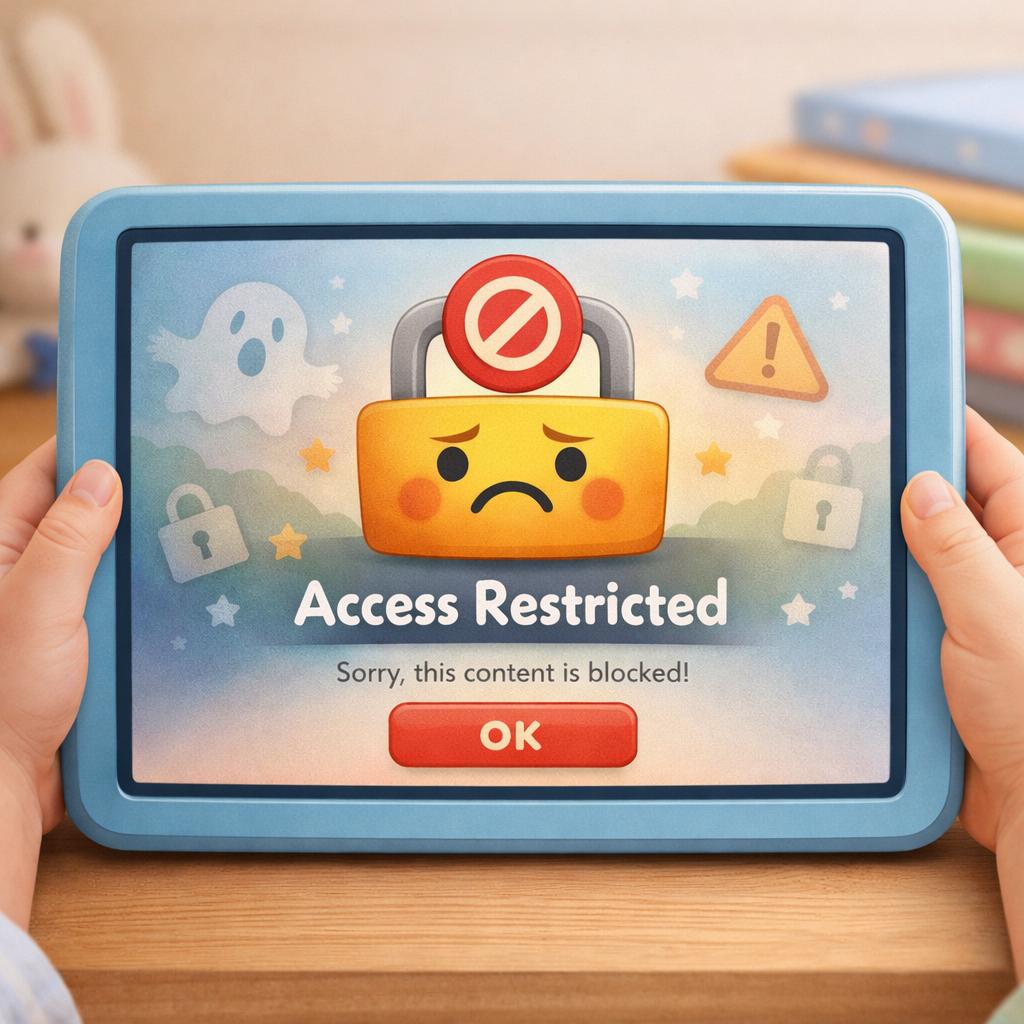
Tablet restrictions shouldn’t be “set and forget.” As your child grows, regularly review and update parental controls. What’s right for a seven-year-old won’t fit a teenager. Every few months, go over device settings together.
Use these reviews to talk about their digital experiences and adjust screen time or privacy as needed. This shows trust, encourages responsibility, and builds healthy habits. Keeping controls updated ensures they stay effective.
When reviewing, ask:
- Is the current screen time limit still suitable?
- Are there new apps or games to review or block?
- Can you loosen any restrictions to allow more independence?
Conclusion
Managing your child's screen time is essential in the digital age. Use the tips discussed to create a balanced approach that encourages healthy habits, meaningful engagement, and open conversations about technology. Set boundaries and offer alternatives to foster a positive relationship with screens.
For personalized advice, request your consultation or call daar at 02 9133 2500 today. Together, we can help your child develop lasting healthy digital habits.
Frequently Asked Questions
How do I prevent my child from bypassing parental controls?
To prevent bypassing parental controls, use a strong screen time passcode that your child doesn't know. Regularly review device settings and privacy settings to ensure nothing has been changed. Use a separate admin account on devices and ensure your child does not have the password for the main parental controls settings.
What can I do if my child resists new screen time rules?
If your child resists new screen time rules, focus on open communication. Explain the reasons behind the changes and listen to their concerns. Involve them in setting the new rules to give them a sense of ownership. Gradually introduce changes and use parental controls like Family Link to consistently enforce the new healthy habits.
How often should parents review their child's tablet settings?
It's a good practice to review your child's screen time settings and parental controls every few months, or whenever their habits or schedule changes significantly. Regularly check their device usage, review privacy settings, and adjust screen time limits to ensure the rules remain appropriate for their age and maturity level.
.svg)




.svg)