
.png?width=48&height=48&name=Group%201%20(3).png)























30 March, 2026

Simple Tips for Blocking Tablet Access for Children
Key Highlights
Here's a quick look at what this guide covers:
- Use built-in parental control settings on both Android and iPad to manage your child’s device.
- Learn how to set up screen time limits to encourage healthy digital habits.
- Block access to inappropriate content and adult websites to keep your child safe.
- Discover tools like Google Family Link to monitor and control tablet usage remotely.
- Find out how to restrict specific apps and prevent in-app purchases.
- Follow step-by-step instructions to childproof your tablet effectively.
Introduction
Tablets are fantastic tools for learning and fun, but it's natural for parents to worry about what their kids are accessing. With so much content available, ensuring your child's digital well-being is a top priority. This guide will walk you through how to use parental control settings on your child’s device to block adult content and manage their online experience. You'll learn simple and effective ways to create a safer digital environment for your family, giving you peace of mind.
Understanding the Need to Block Tablet Access for Children
In today's digital world, tablets have become a common part of childhood. While they offer educational and entertainment benefits, they also open the door to potential risks. Unrestricted access can expose kids to inappropriate content, such as adult websites, and lead to excessive screen time.
That’s why many parents choose to block certain aspects of tablet access. Setting time limits and filtering content on your child’s device isn't about being overly restrictive; it’s about creating a safe and balanced digital experience. Let’s look at the specific reasons for managing tablet use.
Common Reasons Parents Block Tablet Access
Parents have valid concerns about their children’s tablet use. Setting boundaries protects kids from potential risks and encourages healthier habits by balancing screen time with other activities.
Common reasons to set limits include:
- Controlling Screen Time: Limits help prevent overuse, which can disrupt sleep, schoolwork, and physical activity, and reduce eye strain.
- Blocking Inappropriate Content: Restrictions prevent kids from accessing adult or unsuitable material online.
- Managing Apps and Purchases: Controls stop accidental spending and ensure only age-appropriate apps are used.
These steps create a safer, more structured digital environment while also improving battery life and device performance.
Risks of Unrestricted Tablet Use for Kids
Allowing children to use tablets without any supervision or restrictions can introduce several risks. While technology is a great tool, it's important to be aware of the potential downsides of an open-access approach.
The main risks associated with unrestricted tablet use are:
- Exposure to Harmful Content: Children might encounter adult content, violence, or other explicit content that is not appropriate for their age.
- Privacy and Safety Concerns: Without proper privacy settings, kids might unknowingly share personal information online, especially on social media or in games, making them vulnerable.
- Interaction with Strangers: Many apps and games have chat features, which can expose children to contact from strangers, posing a safety risk.
Setting up controls helps mitigate these dangers, ensuring that your child’s online interactions are safe and their personal information remains private.
Benefits of Managing Tablet Access in Australia
Actively managing your child's tablet use in Australia has many benefits for their development and safety. It’s about guiding them toward healthy digital habits—not just restricting access.
Setting time limits and using tools like Google Family Link ensures screen time doesn’t interfere with homework, outdoor play, or family time. This teaches kids balance as they grow.
By managing access, you can choose age-appropriate, high-quality educational apps, making their tablet time a valuable learning experience. This proactive approach helps your child use technology safely and effectively.
Overview of Parental Control Options
When it comes to managing your child's tablet, you have several parental control settings at your disposal. These tools are designed to give you oversight and control over what your child can see and do on their device, helping you create a safer online environment.
Whether you're using an Android tablet or an iPad, you can find both built-in features and third-party applications. Options like Google Family Link provide comprehensive control, from setting time limits to blocking apps. Understanding these options is the first step toward effectively childproofing your child’s device.
Built-in Tablet Parental Controls Explained
Most tablets have built-in parental controls you can activate from the settings menu. These native tools let you:
- Set age-based content restrictions for apps, movies, and TV shows
- Block adult content and specific websites
- Prevent in-app purchases and unauthorized app installations
Controls can be customized for each child’s profile or Google account. Activating them is an easy way to manage your child’s online access without extra software.
Third-Party Parental Control Apps for Australian Families
For parents seeking more advanced features, third-party parental control apps offer a robust solution. These apps, available on the Google Play Store and Apple's App Store, often provide a deeper level of monitoring and customization than built-in controls.
Many Australian families find these apps helpful for managing multiple devices from a single dashboard on their own phones. Apps like Google Family Link are particularly popular, offering a suite of tools to help you guide your child's digital experience.
These third-party solutions typically allow you to:
- Track your child’s location for added safety.
- View detailed reports on app usage and time spent online.
- Set specific time limits for individual apps or the device as a whole.
By exploring these options on the Play Store or App Store, you can find a tool that perfectly matches your family’s needs and gives you greater peace of mind.
Comparing Android and iPad Solutions
Both Android and iPad platforms offer powerful, yet slightly different, parental control systems. Understanding these differences can help you choose the right device for your family or make the most of the one you already have.
On an Android device, Google Family Link is the primary tool. It's a separate app you install that lets you manage nearly every aspect of your child’s digital life, from app limits to content restrictions. iPads, on the other hand, have parental controls called Screen Time built directly into the iOS settings, protected by a screen time passcode.
Here’s a quick comparison of their key features:
|
Feature |
Android (with Google Family Link) |
iPad (with Screen Time) |
|---|---|---|
|
Primary Tool |
Google Family Link app |
Built-in Screen Time feature |
|
App Management |
Approve/block apps, set app limits |
Set app limits, restrict app installation/deletion |
|
Content Filtering |
Filter content on Google Play and Chrome |
Set content restrictions for apps, web, and media |
|
Screen Time |
Set daily limits and bedtime schedules |
Set daily limits and downtime schedules |
|
Passcode |
Google account password required for changes |
A separate screen time passcode is used |
While both systems are effective, your preference might depend on whether you prefer a dedicated app like Family Link or an integrated system like Apple's Screen Time.
Beginner’s Guide to Blocking Tablet Access for Children
Ready to make your child's tablet safer? Getting started with parental controls is easier than you might think. This guide will help you navigate the process, from setting up accounts to enabling specific restrictions.
Whether you're using a built-in feature or a tool like the Family Link app, the fundamental steps are similar. You'll be able to implement content restrictions, set screen time limits, and block unwanted apps. Follow along to learn what you'll need and how to prepare the device for a safer user experience.
What You’ll Need to Get Started
Before diving into the settings, it’s helpful to have a few things ready. Preparing in advance will make the process of setting up parental control settings on your child’s device much smoother and more efficient.
First, ensure both your device and your child’s device are connected to the internet and have sufficient battery. You will also need access to the respective app stores, like the Google Play Store, to download any necessary apps.
Here’s a simple checklist of what you'll need:
- Access to both your device and the child’s device: You'll need to configure settings on both.
- An account for your child: This could be a child’s Google Account or an Apple ID, which you will link to your own account in a family group.
- A clear idea of the rules you want to set: Think about daily time limits, which apps to allow, and what time settings you want for bedtime.
Having these items ready will help you move through the setup process quickly and confidently.
Choosing the Right Parental Control App or Tool
With several options available, picking the right parental control tool depends on your specific needs and the type of device your child uses. The best way to decide is to consider what features are most important to you.
For families in the Android ecosystem, Google Family Link is often the top choice because it’s free and integrates seamlessly with Google services. It's available on the Play Store and offers comprehensive controls. For Apple users, the built-in Screen Time feature is powerful and convenient.
When choosing a tool, consider the following:
- Compatibility: Ensure the app or tool works with your child's device (Android or iPad).
- Features: Do you need simple content filtering, or more advanced features like location tracking and app usage reports?
- Ease of Use: Look for a tool with a user-friendly interface that makes it easy to adjust parental control settings as your child grows.
Researching reviews and comparing features will help you find the best parental control solution for your family.
Preparing Your Child’s Tablet for Restrictions
Once you've selected a parental control tool, prepare your child’s device to ensure restrictions are effective and not easily bypassed. Start by explaining the purpose of these controls to your child as a safety measure.
Remove any unwanted apps or content from the device, and update its operating system to the latest version for optimal security and functionality.
Next, open the device’s settings to enable parental controls—such as Apple’s Screen Time or Android’s user profiles. Here, you can block adult websites and filter explicit content before giving the tablet back to your child.
Step-by-Step Guide to Block Tablet Access for Kids
Now that you're prepared, it's time to implement the parental control settings. This step-by-step guide will walk you through the process of securing your child’s device to create a safe and controlled digital environment.
We will cover everything from creating user accounts to setting screen time limits and blocking inappropriate content. By following these steps, you can confidently use tools like Google Family Link or built-in controls to manage your child’s tablet usage effectively.
Step 1: Set Up User Profiles or Child Accounts
The foundation of effective parental controls is creating a separate account for your child. This allows you to apply restrictions to their profile without affecting your own access on the same device. Giving your child their own account also helps them feel a sense of ownership.
For Android users, this means creating a child’s Google account and adding it to your family group through Google Family Link. For iPad users, you’ll create a child Apple ID and add them to your Family Sharing group. This links their account to yours, giving you administrative control.
Here’s why setting up a separate account is crucial:
- It allows for personalized restrictions based on the child's age.
- It keeps their apps, data, and settings separate from yours.
- It is a necessary first step for managing purchases on the Play Store or App Store and enabling most parental controls.
Once you have set up the child’s account, you can move on to configuring the specific controls.
Step 2: Install and Configure Parental Control Apps
With a child account in place, the next move is to install and set up your chosen parental control tool. If you're using an Android device, this typically involves downloading an app like the Family Link app from the Google Play Store onto both your phone and your child's tablet.
Once installed, open the app and follow the on-screen instructions to link your child's account. The setup process will guide you through granting the necessary permissions for the app to monitor and control the device. For iPad users, this step involves navigating to the Screen Time settings and enabling it for your child's account.
During configuration, you will be prompted to:
- Connect your parent account with your child's account.
- Grant permissions for the app to manage settings on the child's device.
- Choose the initial parental control settings, which you can adjust later.
This setup establishes the connection that allows you to manage the tablet remotely from your own device.
Step 3: Limit Screen Time for Kids
One of the most valuable features of parental controls is the ability to manage how much time your child spends on their tablet. Setting screen time limits is essential for promoting digital wellbeing and ensuring technology doesn't take over their day.
Using your parental control app, such as Google Family Link, or the built-in settings on an iPad, you can easily establish daily time allowances. This feature lets you decide the total number of hours your child can use their device each day.
You can typically set:
- Daily Limits: For example, you can set a limit of two hours on weekdays and three hours on weekends.
- Bedtime Schedules: You can also set specific "downtime" or "bedtime" settings, which lock the device during certain hours, like from 8 PM to 7 AM, to encourage healthy sleep habits.
These time settings help teach children about moderation and ensure they have plenty of time for other activities.
Step 4: Restrict Access to Inappropriate Content
Protecting your child from harmful material online is a primary reason for using parental controls. All major parental control tools offer robust content restrictions to help you filter out things you don't want your child to see.
You can set these restrictions to automatically block inappropriate content across web browsers, app stores, and media apps. This is a critical step in creating a safe digital space for your child to explore.
Most tools allow you to:
- Block Adult Websites: You can enable filters that block known adult websites and prevent access to explicit content in search results. Some tools also let you manually block or approve specific sites.
- Set Age Ratings for Media: You can restrict apps, games, movies, and TV shows based on their age ratings, ensuring your child only accesses age-appropriate entertainment.
These content restrictions work in the background to provide a layer of protection as your child uses their tablet.
Step 5: Lock or Block Specific Apps and Features
Beyond general content filters, you can block specific apps or features on your child’s device, such as social media, web browsers, or the camera. Parental controls let you easily customize which apps are accessible.
From your parent dashboard, you can view all installed apps and choose to block or allow them individually. Blocked apps may be hidden from the home screen or require a password to open.
With these settings, you can:
- Block social media until your child is old enough
- Restrict access to the settings app
- Temporarily lock distracting games during homework
This control lets you tailor the tablet experience to your child's needs and your family’s rules—without needing physical access to the device.
Step 6: Set Up Safe Browsing and Filtered Internet Use
Keeping your child safe online is essential for digital parenting. Parental controls let you filter web content and enable safe browsing, reducing worries about what your child might encounter.
Most systems let you block millions of adult sites automatically and offer different levels of filtering—from blocking explicit content to allowing only approved websites.
To set up safe browsing:
- Enable SafeSearch: Lock SafeSearch in browsers like Chrome to filter out explicit search results.
- Use Website Whitelists/Blacklists: For younger kids, use a whitelist of approved sites; for older kids, blacklist specific problematic sites.
These tools give you precise control over your child’s online access, making the internet safer for them.
Step 7: Review and Adjust Settings Regularly
Parental controls aren’t a “set it and forget it” tool. As your child grows, their needs change—so should your settings. Regularly review and adjust controls to keep your approach effective.
Every few months, check your Google Family Link or iPad Screen Time settings and usage reports. This helps you see how your child spends time online and can spark conversations about new interests or apps.
You may need to relax limits for older kids or tighten restrictions if new apps appear. Staying involved keeps rules fair and relevant, building trust and cooperation with your child.
How to Block Tablet Access on Android Devices
For families with an Android device, managing your child's tablet access is primarily done through Google Family Link. This powerful and free tool allows you to set up comprehensive parental control settings from your own phone.
With Family Link, you can create a supervised account for your child and then set rules for how they use their Android tablet. You can manage everything from app approvals and time limits to content filters, all from one central app. The following sections will guide you through using this tool effectively.
Using Google Family Link for Android Tablets
Google Family Link is a top choice for parents using Android. It lets you connect your Google account to your child’s, allowing you to manage their device remotely.
To set up, download the Family Link app on your device and create a Google account for your child if needed. Follow the prompts to link accounts and install the child version on their tablet.
With Family Link, you can:
- Approve or block Play Store app downloads.
- Monitor your child's app usage.
- Add them to your family group to share purchased content.
Family Link offers a simple way to oversee your child's digital activity on Android tablets.
Setting Up Screen Time Limits and App Restrictions
Once Google Family Link is set up, you can quickly configure screen time limits to control how long and when your child uses their tablet.
Open the Family Link app on your phone and select your child's profile to access parental controls. Here, you can set daily device time limits and create a bedtime schedule that locks the device automatically each night.
You can also manage individual apps:
- Set App Limits: Assign daily time limits to specific apps.
- Block or Allow Apps: View and block any unwanted apps on your child's device.
- Manage App Permissions: Review and adjust app permissions through Android settings in Family Link.
These features give you detailed control over your child's device and app usage.
Preventing App Uninstallation and Changes
A common concern for parents is that their tech-savvy kids might try to bypass the rules by uninstalling the parental control app or changing the settings. Fortunately, tools like Google Family Link are designed to prevent this.
When you manage a child’s account with Family Link, many of the key parental control settings are locked. Your child cannot uninstall the Family Link app from their device, nor can they make significant changes to their device settings without your password.
To ensure everything stays secure:
- Restrict access to the settings app: While Family Link locks down many options, you can add another layer of protection by blocking the main settings app itself.
- Manage Google Play settings: Family Link also controls their ability to change settings within Google Play, preventing them from bypassing purchase approvals or content filters.
These safeguards ensure that the rules you put in place remain effective, giving you confidence that your child is using their tablet safely.
How to Block Tablet Access on iPads
For families with iPads, Apple provides a powerful suite of built-in parental controls called Screen Time. This feature is integrated directly into the iPad's operating system, allowing you to manage nearly every aspect of your child’s device usage.
With Apple parental control, you don't need to download any extra apps. You can set up everything from content restrictions and app limits to communication safety features right from the settings menu. The following sections will detail how to use Screen Time to effectively childproof an iPad.
Enabling Apple’s Parental Controls and Screen Time
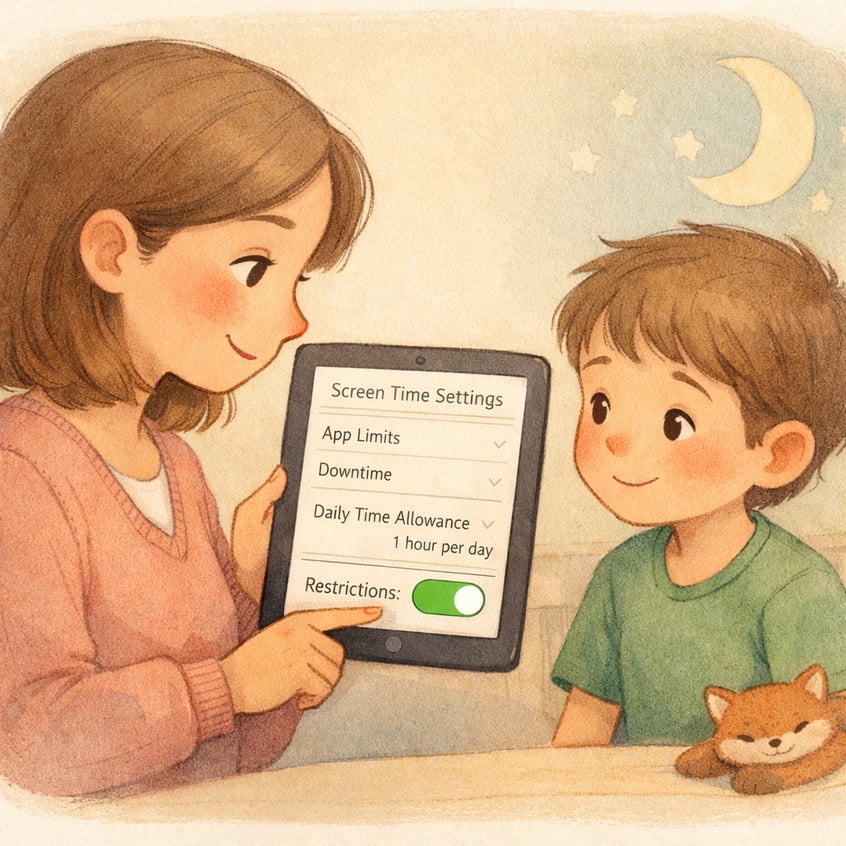
Setting up parental controls on an iPad is simple with Screen Time in the Settings app. Create a unique passcode to secure your settings.
Ensure your child has their own Apple ID and is part of your Family Sharing group, so you can manage settings remotely. On their device, go to Settings > Screen Time and turn it on.
During setup, you can:
- Set a Screen Time Passcode: Prevents changes to restrictions.
- Establish Downtime and App Limits: Schedules device use and limits app time.
- Configure Content & Privacy Restrictions: Blocks inappropriate content and manages purchases.
Enabling these features is the key first step in securing your child's iPad.
Locking Down Content, Apps, and Features
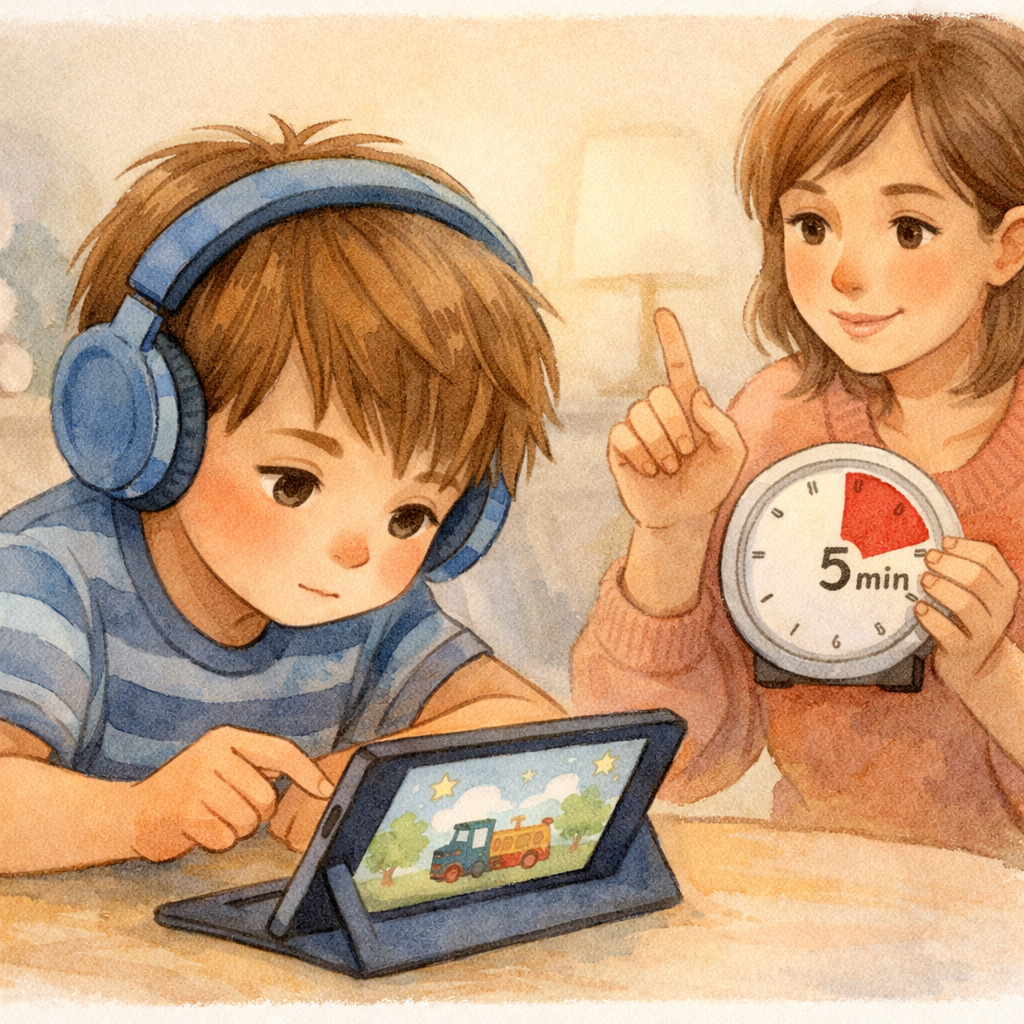
In Screen Time settings on an iPad, the "Content & Privacy Restrictions" section lets you control what your child can access. Turning this on allows you to set age-based content filters for music, movies, and apps.
You can also:
- Disable App Installation: Block your child from downloading or deleting apps.
- Restrict Multiplayer Games: Turn off multiplayer features and friend requests in Game Center.
- Set Privacy Restrictions: Limit access to location, contacts, and microphone.
These controls help you create a safe, secure environment for your child on the iPad.
Limiting Internet Access to Approved Apps Only
For younger children, limit internet access to a few trusted apps and websites using Apple’s Screen Time features.
Go to Settings > Screen Time > Content & Privacy Restrictions > Web Content. Here, you can restrict adult sites or choose “Only Approved Websites” for maximum control, allowing only kid-friendly sites you select.
To tighten restrictions:
- Disable Safari: Turn off Safari under “Allowed Apps” to block web browsing entirely.
- Watch for In-App Browsers: Some apps have built-in browsers. To fully block internet access, disable Wi-Fi in settings.
This creates a controlled “walled garden,” letting your child access only approved apps and content.
Conclusion
In conclusion, effectively blocking tablet access for children is crucial for their healthy development and safety. By understanding the reasons to restrict access, exploring various parental control options, and following a systematic approach to implementing these controls, you can create a balanced digital environment for your kids. Regularly reviewing and adjusting settings ensures that your child's experience remains positive while protecting them from inappropriate content and excessive screen time.
If you’re ready to take control of your child's tablet usage, consider booking a consultation or call daar at 02 9133 2500 with our experts to find the best strategies tailored to your family's needs.
Frequently Asked Questions
How do I block my child from accessing certain apps on their tablet?
You can use parental control settings on your child’s device to block specific apps. On both Android and iPad, you can set app limits, restrict apps by age rating through content restrictions, or block them entirely from your parent dashboard. This prevents the app from being opened without your passcode.
What’s the best parental control app for limiting screen time for kids in Australia?
For Android users in Australia, Google Family Link is widely considered the best free option for setting screen time limits. For iPad users, the built-in Screen Time feature is excellent. Both offer robust parental control settings to manage your child's device usage, set daily limits, and schedule bedtime.
How do I stop my child from uninstalling parental control apps?
Parental control apps like Google Family Link prevent uninstallation by linking to your child’s account and requiring your password for changes. On iPads, Screen Time is part of the OS and can't be removed. You can also restrict access to the settings app to add another layer of protection.
.svg)




.svg)