
.png?width=48&height=48&name=Group%201%20(3).png)























1 April, 2026

A Complete Guide to Parental Controls for Tablets

Key Highlights
Here are the key takeaways from- our guide on tablet parental controls:
- Use built-in parental controls on iPads and Android devices to manage your child’s digital experience.
- Set up features like kids mode and specific screen time settings to create a safe environment.
- Establish clear time limits to manage how long your child uses their tablet each day.
- Filter apps, games, and web searches to block inappropriate content effectively.
- Properly configured controls provide peace of mind, knowing your child is safer online.
Introduction
Giving your child a tablet opens up a world of learning and fun, but it also comes with concerns about safety. How can you ensure they have a positive experience without stumbling into content that isn't for them? This is where parental controls and safety features come in. These essential tools help you manage everything from screen time to app access, ensuring tablet safety isn't a constant worry. This guide will walk you through setting up these controls, so you can feel confident about your child's tablet use.
Understanding Parental Controls for Tablets
Parental controls are a collection of settings designed to help you oversee your child's digital world. They are not just about blocking things; they are about creating a space that is appropriate for your child's age and development.
By using these tools, you can adjust privacy settings, monitor their online activity, and guide them toward healthier digital habits, including understanding the hardware features. Let's explore what these controls are, why they're important, and some common misunderstandings about them.
What Are Tablet Parental Controls?
Tablet parental controls are built-in tools that let you manage your child’s device use. They act as digital guardrails, allowing you to block certain apps, websites, and content by age rating.
To set up parental controls, start by creating a child account. On Android, set up a new Google account for your child and link it with Google Family Link. On an iPad, add them to your Family Sharing group, ensuring that they are part of the family sharing group.
Once the account is ready, adjust the parental control settings—such as app downloads and screen time limits—to fit your family’s rules. This makes managing your child’s digital safety simple and effective, similar to receiving notifications in the messages app.
Why Parents in Australia Should Use Parental Controls
Australian parents, like those everywhere, face the challenge of keeping their children safe online. Parental controls on tablets are essential for protecting kids from digital risks and creating a secure environment.
Why use parental controls? They help you:
- Block Inappropriate Content: Filter out adult websites, explicit media, and unsuitable apps.
- Manage Screen Time: Set daily limits or schedule downtime to prevent excessive use.
- Protect Personal Information: Adjust privacy settings to stop apps from accessing sensitive data.
Using parental controls gives you peace of mind and supports a safer, healthier relationship between your child and technology.
Common Misconceptions About Parental Controls
Many parents have questions or misconceptions about parental controls, often viewing them as too restrictive or complicated. In reality, they’re meant to guide and protect—not spy on—your kids.
Here are some common myths clarified:
- They replace conversations: Parental controls are tools, not substitutes for talking with your kids about online safety.
- They block all harmful content: No tool is perfect; parental controls are just one layer of protection.
- They only block content: These tools also manage screen time, prevent unauthorized purchases, and protect privacy.
Are parental controls effective for limiting screen time? Yes. Features like daily limits and scheduled downtime help you manage your child’s device use and encourage a balanced approach to digital content.
Preparing Your Child’s Tablet for Safety
Before you hand over a new tablet, taking a few preparatory steps is key for ensuring tablet safety. This initial setup creates a secure foundation from the start, protecting your child's personal information and establishing healthy boundaries.
You can configure most of these protections, including Touch ID, directly from the settings app. Creating a screen time passcode ensures that only you can make changes to the rules you’ve established. We'll now look at how to choose the right device and adjust essential settings.
Assessing the Right Tablet for Kids
When choosing a tablet for your child, focus on parental controls and age-appropriate features—not just screen size or price.
Check built-in safety tools: iPads offer strong Screen Time controls, while Android tablets pair well with Google Family Link for kids’ accounts.
Before handing over the device, adjust necessary settings for safety. Look for:
- Easy-to-use parental controls
- Durable design
- Compatibility with Family Sharing or Family Link
- Age-appropriate defaults
Essential Settings to Change Before Setup
Before your child uses the tablet, adjust key settings to create a safe digital environment from the start. Don’t wait until they’ve begun exploring to set rules.
Begin by enabling content filters—most devices let you block explicit content in apps, browsing, and media. Review privacy settings to restrict app access to location, microphone, and contacts.
Essential settings to configure:
- Content & Privacy Restrictions: Block adult sites, filter for age-appropriate apps, movies, shows, and music videos.
- Purchase Settings: Disable in-app purchases or require a password for each transaction.
- Screen Time: Set daily limits and schedule downtime for healthy use.
Creating User Profiles and Restricted Access
Creating separate user profiles is an effective way to manage a shared family tablet or personalize a child’s device. A dedicated profile ensures parental controls apply only to your child’s account, keeping other profiles unrestricted.
On Android devices, use Google Family Link. After setting up a Google account and email address for your child and linking it to yours, you can manage activity, approve apps, and set limits—giving your child a tailored, restricted experience.
On iPad, use Apple’s Family Sharing. Add your child to your family group to access parental controls like Screen Time. You can set daily app limits and disable multiplayer games while scheduling device downtime for effective screen time management.
Built-In Parental Control Features on Popular Tablets
Most popular tablets come equipped with powerful, built-in parental controls. You don't always need to download a third-party app to keep your child safe. To ensure optimal functionality, these native tools are integrated directly into the device's operating system, accessible through the settings app, and it's recommended to keep the device updated with the latest software version.
Whether you have an iPad, an Android tablet, or a Samsung device, you can manage everything from content access to screen time settings once you've set up a family group that is part of a family. Let's look at the specific features available on some of the most common tablets.
iPad Content & Privacy Restrictions
Apple's iPads offer a comprehensive suite of important tools for parental controls under the "Screen Time" menu. These tools allow you to set detailed content restrictions and privacy restrictions to create a safe environment for your child.
You can manage nearly every aspect of the device's use. This includes preventing access to explicit content in music and movies, blocking specific websites, and controlling multiplayer access in the Game Center features. You can even disable features like adding friends or screen recording.
A common question is, "Can I restrict screen time on an iPad using parental controls?" The answer is a definitive yes. The screen time settings are incredibly versatile, letting you set several settings, including daily time limits for specific app categories or individual apps. You can also schedule "Downtime," during which only approved apps are available, making it perfect for enforcing bedtime.
Android Tablet Parental Controls
For any Android device, Google Family Link is the cornerstone of its parental controls settings. This free app from Google lets parents manage their child’s Google account and digital experience from their own phone, offering a wide range of features to ensure online safety.
Once you connect your child's Google account to your Family Link, you can approve or block apps they want to download from Google Play, monitor their screen time, and even lock their device remotely when it’s time for a break. You can also approve a new contact and apply filters for web browsing and YouTube.
While Google Family Link is often considered one of the best parental control apps for Android tablets due to its deep integration, other third-party apps are also available. However, for most families, Family Link provides all the necessary tools to manage an Android device effectively and is the best place to start.
Samsung Tablet Kids Mode and Controls
Yes, there are built-in parental control features on Samsung tablets, most notably through an application called Samsung Kids. Formerly known as Kids Mode, this feature creates a dedicated, sandboxed environment on the tablet just for your child.
Samsung Kids Mode offers a fun, simplified interface with pre-selected, child-friendly apps. You can add additional information about more apps from the main device, but your child cannot leave the Kids Mode without a PIN. This gives you control over exactly what content they can access. The parental control features within Samsung Kids let you set screen time limits and review activity reports.
You can customize your child's experience by setting daily playtime goals and deciding which contacts and apps they can access. Here are some of the key features:
|
Feature |
Description |
|---|---|
|
Daily Playtime Limit |
Set a maximum amount of time your child can use the tablet each day. |
|
Allowed Content |
Hand-pick the apps, games, and videos your child can access. |
|
Activity Report |
See which apps your child uses most and how much time they spend. |
|
Exit PIN |
Prevents your child from leaving the safe Samsung Kids environment. |
Setting Up Controls for App Usage and Downloads

Managing app downloads is a critical part of tablet safety. Without supervision, kids might install apps that are inappropriate, filled with ads, or have hidden costs. Fortunately, both iOS and Android offer robust parental control settings for the app store.
Using tools like Apple’s Screen Time or the Google Family Link app, you can require your new approval for every new download. This ensures you have the final say on the content your child interacts with. Let’s review how to manage installations by age, block specific apps, and prevent unwanted purchases.
Managing App Installations by Age
Yes, it is entirely possible to manage app downloads on a child's tablet. One of the most useful parental controls is the ability to filter apps based on age ratings. This prevents your child from even seeing or downloading apps from the app store that are meant for an older audience.
On both iPads and Android tablets, you can set the App Store or Google Play Store to only show content, including TV shows, that matches specific ratings you approve. For instance, you can restrict app downloads to those rated for ages 4+, 9+, or 12+, aligning with your child’s maturity level.
This feature simplifies app management significantly. Instead of approving every single app, you can set a baseline for what’s appropriate. Key settings include:
- Restricting apps based on official age ratings (e.g., 4+, 9+, 12+, 17+).
- Blocking unrated apps entirely.
- Applying similar content restrictions to the Game Center and other media.
Blocking or Allowing Individual Apps
Sometimes, age ratings aren't enough. You might find a specific app or game you simply don't want your child to use, even if it meets the age criteria. In these cases, you can use parental controls to block apps individually. This gives you granular control over the content on their tablet, especially when you want to ensure they cannot play games that are not appropriate.
How do I block inappropriate tap content on a tablet this way? You can do this through the settings app. On an iPad, the "Always Allowed" and "App Limits" sections within Screen Time let you specify which apps are available and for how long. On Android, Google Family Link lets you block or allow apps directly from your own device.
This feature is useful for several reasons:
- Blocking distracting apps: Limit access to social media or certain games during homework hours.
- Hiding built-in apps: You can hide system apps like the web browser or the mail app if you don't want your child using them.
- Vetting new apps: You can block all new apps until you have had a chance to review them yourself.
Preventing Unauthorized App Purchases
One of the biggest worries for parents is the shock of a huge bill from unauthorized in-app purchases. Kids often don’t realize that the "gems" or "coins" they're buying in a game cost real money. Thankfully, it's easy to prevent this.
How do I prevent unauthorized app purchases? The most effective method is to adjust the password settings for the App Store and Google Play. You can configure the device to require a password for every single purchase, including in-app purchases. This means no transaction can go through without your approval.
On an iPad, you can set this up under "iTunes & App Store Purchases" within the Screen Time settings, protected by your screen time passcode. On an Android device, you can find this setting within the Google Play Store's authentication menu. Setting this to "Always Require password" is the simplest way to avoid any surprise charges.
Screen Time Management Strategies
Beyond just blocking bad content, managing the amount of screen time your child gets is crucial for their well-being. Excessive use can interfere with sleep, schoolwork, and outdoor play. Effective screen time management is about balance, not a total ban.
Using the built-in screen time settings on tablets, you can set time limits for specific apps or the device as a whole. These tools help you enforce rules consistently without constant arguments. Let's explore how to set these limits, schedule downtime, and monitor usage.
How to Set Screen Time Limits
Setting screen time limits is a straightforward process using the parental controls built into modern tablets. These features, including screen distance, allow you to dictate how long your child can use their device each day, helping to promote healthier digital habits.
On an iPad, you can restrict screen time using the "App Limits" feature within Screen Time. This lets you set daily time limits for entire categories of apps (like "Games" or "Social") or for specific apps on the home screen. When the time is up, the app is blocked until the next day.
For Android tablets, the Google Family Link app provides similar functionality. You can set an overall daily screen time limit for the entire device. Once the time runs out, the tablet locks, and your child will need your permission for more time. These tools make it easy to set screen time limits and enforce them automatically.
Scheduling Downtime and Bedtime
A great way to manage tablet use is to schedule downtime, which is a period when the device is locked except for essential functions. This is especially useful for creating a consistent bedtime schedule, ensuring that the bright screen doesn't interfere with sleep.
How do I manage downtime on a child’s tablet? In your device’s screen time settings, you can schedule downtime to begin at a certain time each evening and end in the morning. During this period, only apps you specifically allow (like a clock or music app) will be accessible. All other apps will be grayed out and unusable.
This feature automates the "time to put the tablet away" conversation. You can set a different schedule for weekdays and weekends to allow for more flexibility. All these settings are protected by your screen time passcode, so your child can't change the bedtime schedule you've created.
Monitoring Screen Time Reports
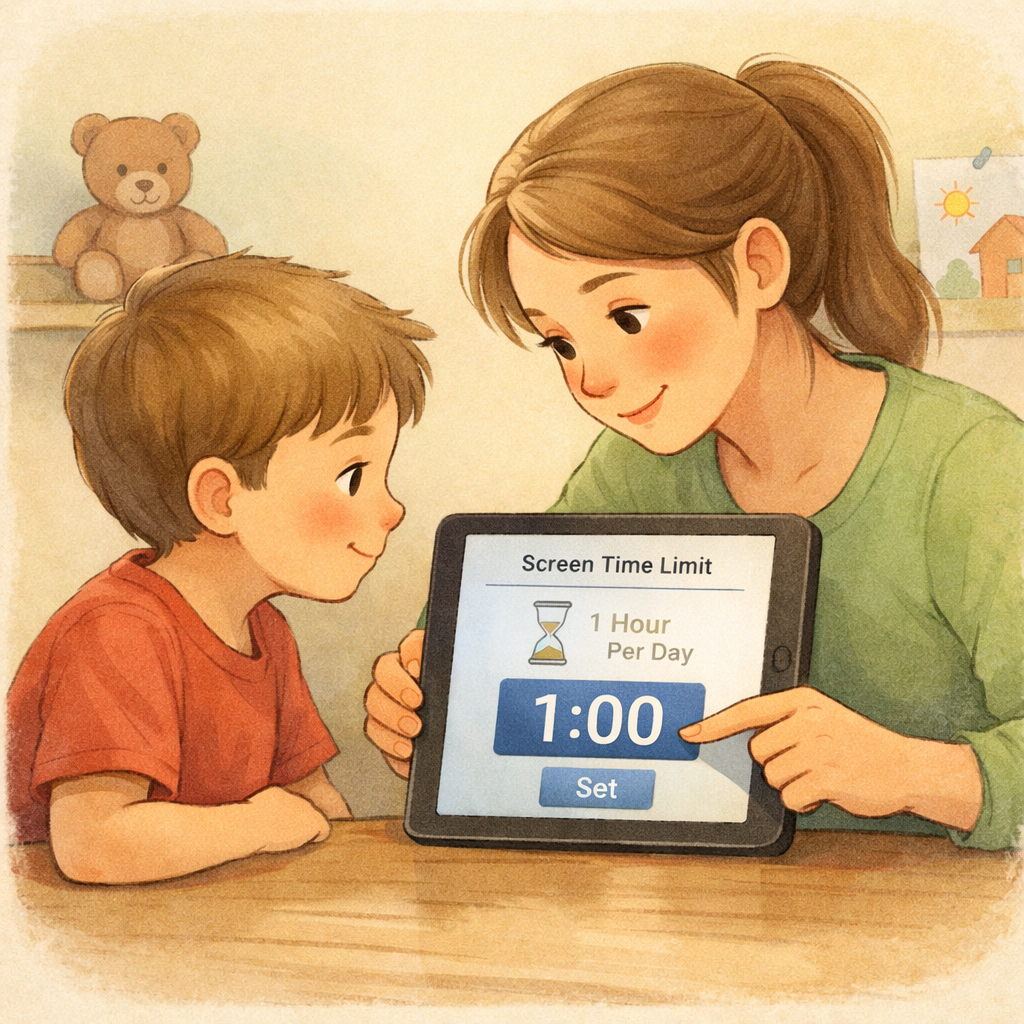
Yes, you can monitor your child's activity on their tablet with parental controls. Both Apple's Screen Time and Google's Family Link provide detailed screen time reports that give you valuable insights into your child's digital habits through independent websites. These reports are a great starting point for conversations about responsible tech use.
These reports break down their online activity, showing you which apps they use the most, how many notifications they receive, and how often they pick up their device. Additionally, ensure you sync your iCloud contacts to access this information directly on your own device if your child is part of your family group.
Reviewing these reports regularly helps you understand what your child finds engaging. If you see that they are spending hours on a single game or app, you can use that information to adjust the parental controls settings, especially if there has been a significant change, or simply talk to them about it. It's a tool for awareness, not just for enforcement.
Conclusion
In conclusion, implementing essential parental controls on tablets is crucial for creating a safe digital environment for your children. By understanding the built-in features and adjusting settings accordingly, you can effectively manage app usage, screen time, and online interactions. It’s important to stay informed about advancements in parental controls and continually communicate with your child about safe tablet practices. Ultimately, this proactive approach not only protects them from inappropriate content but also fosters responsible technology habits that will benefit them in the long run.
If you’re looking for personalized tips or assistance setting up parental controls, don’t hesitate to reach out for a consultation or call daar at 02 9133 2500.
Frequently Asked Questions
Can I monitor my child’s tablet activity remotely?
Yes, you can. Tools like Google Family Link for Android and Apple's Family Sharing for iPad allow you to monitor your child’s online activity remotely from your own phone. You can view screen time reports, manage their contacts list, and adjust parental control settings without needing physical access to their tablet.
What is the easiest way to block inappropriate content on a tablet?
The easiest way is to use the built-in parental controls. In the screen time settings, you can enable the type of content restrictions to automatically block inappropriate content like adult content and explicit material. You can also limit web content to approved websites only for maximum safety.
Are parental controls effective for limiting screen time?
Yes, parental controls are very effective for this. The screen time features allow you to set daily time limits for overall device use or for specific app categories. You can set time limits that automatically lock apps when the time is up, making it easy to enforce rules consistently. For more detailed guidance, refer to this support article.
.svg)




.svg)