
.png?width=48&height=48&name=Group%201%20(3).png)
























30 March, 2026

Blocking Tablet Access Children: Essential Tips for Parents

Key Highlights
Here are the essential tips for managing your child's tablet access:
- Utilize built-in parental control settings on both Apple and Android devices to manage usage.
- Set clear screen time limits and daily schedules to foster a healthy balance with other activities.
- Use tools like Google's Family Link to monitor your child's Android device and set content restrictions.
- Adjust content and privacy settings to block access to adult content and prevent unwanted purchases.
- Explore third-party apps to find additional features like location tracking and social media monitoring.
- Establish open communication with your child about online safety and the reasons for tablet rules.
Introduction
Tablets are fantastic tools for learning and fun, but unrestricted access can be a worry for any parent. How do you ensure your child's device usage is safe and balanced? Managing what they see and do online is crucial for their well-being. This guide offers straightforward tips on blocking access, setting limits, and using parental controls effectively. You'll learn how to protect your child’s device from adult content and create a safer digital environment for them to explore.
Understanding the Need for Tablet Restrictions in Australia
In today's digital world, ensuring online safety for children is a top priority for Australian families. Tablets open up a world of information, but they also expose kids to risks like inappropriate content and adult websites. Implementing restrictions based on your child's age helps protect them as they navigate the internet.
Using parental controls, such as web filtering and managing device usage, allows you to create a safer online space. These tools are essential for guiding your child's digital journey responsibly. Now, let's look at the specific risks and the benefits of setting boundaries early.
Risks of Unrestricted Tablet Use for Children
Allowing unlimited tablet use exposes your child to several risks. They may accidentally encounter explicit or harmful content, as many websites and social media platforms aren’t designed for young users.
Excessive screen time can also cause eye strain and disrupt sleep. Online interactions with strangers add another layer of concern. To protect your child, use the tablet’s parental controls to block certain apps and restrict access.
The digital world can be overwhelming for children without guidance. Setting rules and enabling parental controls helps ensure their online experiences are safe, positive, and age-appropriate.
Advantages of Setting Tablet Boundaries Early
Setting clear tablet rules early helps your child build healthy digital habits. Screen time limits teach balance between online activities, offline play, homework, and family time, preventing overuse and encouraging a well-rounded lifestyle.
Use parental controls to create a child’s account with specific rules, making device management easier. You can set daily app or device limits in your tablet’s “Screen Time” or “Digital Wellbeing” settings, including scheduled downtime and category restrictions.
This approach guides—not just restricts—your child to use technology mindfully. Early boundaries help them develop self-regulation skills for responsible digital independence as they grow.
Using Apple Parental Controls for iPads
If your child uses an iPad, Apple's built-in parental controls are powerful tools for managing their device. You can use Apple parental controls to set various restrictions easily. Features like Screen Time let you monitor usage, set app limits, and schedule downtime, all protected by a screen time passcode.
These settings provide granular control over your child's iPad experience, from blocking inappropriate content to setting privacy restrictions. By exploring the screen time settings, you can tailor the device to be a safe and productive space for your child. Let's explore how to configure these content, privacy, and app access controls.
Setting Content & Privacy Restrictions on iPad
Apple makes it easy to control what your child can access on their iPad or iPhone. In the Settings app, enable "Content & Privacy Restrictions" under Screen Time to block App Store purchases, adult websites, and set content limits.
You can tailor these restrictions by age, blocking movies and TV shows by rating and preventing access to explicit music or books. Privacy settings let you restrict location services, contacts, and photos so apps can't access personal information without your approval.
To stop your child from uninstalling apps, go to "iTunes & App Store Purchases" and set "Deleting Apps" to "Don't Allow." This keeps approved apps on the device.
Managing App Access and Screen Time with Apple Tools
Apple’s Screen Time is more than a usage tracker—it’s a full management tool. Set app limits for categories like games or social media; once time’s up, access is locked. Use “Downtime” to allow only approved apps and calls, perfect for bedtime or school hours.
All controls are protected by a passcode so kids can’t change them. With Family Sharing, you can manage your child’s settings remotely from your device.
You can also restrict Game Center features, such as disabling multiplayer games or private messaging, to create a safer environment. These tools let you customize a balanced and secure digital experience for your child.
Top Parental Control Apps for Australian Families
While built-in controls are great, sometimes you need more advanced parental control features. Apps like Qustodio, Net Nanny, and Kaspersky Safe Kids offer comprehensive solutions for monitoring and managing your child's online activity across multiple devices. Google's Family Link app is another excellent free option, especially for Android users.
Choosing the best parental control app depends on your family's specific needs, such as location tracking, social media monitoring, or advanced web filtering. These apps can be managed through a central dashboard, giving you a complete overview of your family group's digital life.
Comparing Features and Ease of Use
When comparing parental control apps, you'll find a range of features available from the App Store and Google Play Store. Most offer content filtering and the ability to block specific websites, but some go further with detailed privacy restrictions. Many services have free versions with basic features, while paid plans unlock more advanced tools. To set up Google Family Link, simply download the app on both your and your child's device, create a child's Google Account, and follow the on-screen prompts to link them.
Web filtering capabilities can vary, with some apps using AI to analyze page content in real-time. Ease of use is also a key factor; a complicated interface can make managing settings a chore. Below is a comparison to help you decide.
|
Feature |
Qustodio |
Net Nanny |
Bark |
|---|---|---|---|
|
Platforms |
Windows, macOS, Android, iOS, ChromeOS |
Windows, macOS, iOS |
Android, iOS, ChromeOS, Amazon Fire |
|
Core Features |
Web filtering, time limits, location tracking |
Content filtering, screen time management, social media monitoring |
AI-powered monitoring of texts, email, social media |
|
Unique Selling Point |
Detailed activity reports and call/SMS monitoring |
Real-time content analysis and profanity masking |
Proactive alerts for issues like cyberbullying and self-harm |
|
Price |
Paid plans starting around $55/year |
Paid plans starting around $40/year |
Paid plans starting around $14/month |
This table highlights some key differences, but it’s always a good idea to try free versions or trials to see which app best fits your family's needs.
How to Choose the Best App for Your Home
Selecting the right parental control app is a personal decision that hinges on your family's needs and your child's age. The best way to choose is to match the app's features to your primary concerns. For younger children, strong content filtering and time limits might be the priority. For teens, you might focus more on location tracking and monitoring communications for safety.
Consider your goals for online safety. Do you want to block multiplayer games, monitor social media, or simply enforce screen time rules? Apps like Google's Family Link offer a solid foundation for free, while paid options provide more robust parental control settings.
When making your choice, think about these factors:
- Your Child's Age: Simpler controls for young kids, more monitoring features for teens.
- Key Features: Decide if you need web filtering, time limits, location tracking, or app management.
- Ease of Use: An intuitive interface makes it easier to manage settings.
- Cost: Determine if a free app is sufficient or if a paid subscription is worth the investment.
- Device Compatibility: Ensure the app works on all of your child's devices.
Strategies to Limit Screen Time for Kids
Effectively managing your child's device usage involves more than just blocking content; it's also about quantity. Setting clear screen time limits is crucial for building healthy habits. You can set screen time limits for daily usage, ensuring that tablets don't take over their entire day.
Tools like "Downtime" on Apple devices or "Bedtime modes" on Android are excellent for this. They allow you to define periods when the device is mostly off-limits, such as during homework hours or before bed. These strategies help reinforce a balanced lifestyle.
Setting Daily Usage Limits Effectively
To effectively set daily time limits, it's important to be consistent and clear with your rules. Start by having a conversation with your child about why these limits are being put in place. To set up screen time limits on a child's tablet, go to your device’s settings app and look for "Screen Time" (iOS) or "Digital Wellbeing" (Android). From there, you can establish daily time limits for the entire device or specific app categories.
Use a screen time passcode to ensure these settings can't be changed. For a child’s device, it’s a good idea to involve them in setting the limits, which can help them feel more in control and accepting of the rules. The goal is to teach them self-regulation, not just to enforce a rule.
Here are some tips for setting effective daily usage limits:
- Be Realistic: Set achievable time limits based on your child's age and needs.
- Be Consistent: Enforce the limits every day to establish a routine.
- Use Timers: Set timers for specific apps or games to avoid arguments when time is up.
- Offer Alternatives: Encourage offline activities that your child enjoys.
Enabling Downtime and Bedtime Modes
Downtime and bedtime modes let you control when your child can use their tablet by setting screen time limits. For example, you can restrict access to only approved apps, like phone calls, from 8 PM to 7 AM—reducing distractions and improving sleep.
Parents can adjust these settings remotely without needing the device. Unlike app limits, which cap daily usage for specific apps, downtime blocks all access during scheduled hours.
If you want your child to use only one app (like watching videos), features such as Apple’s Guided Access or Android’s Screen Pinning lock the tablet to that app and block other functions.
Enhancing Child Digital Wellbeing With Tablet Rules
Creating tablet rules is about more than just restriction; it’s about promoting digital wellbeing. This means teaching your child how to use their device in a healthy and balanced way. By managing their device usage, you guide them toward positive online experiences, whether for learning or entertainment.
A thoughtful approach to rules, privacy settings, and content can help your child navigate the complexities of social media and web content safely. Let's look at how to encourage this balance and use tablets as a force for good.
Encouraging Balanced Device Use
Promoting balanced device use is essential for your child's digital health. Teach them that tablets offer more than games and videos—encourage creative projects, educational apps, and connecting with family. Set an example with your own tech habits.
Use tools like Apple’s screen time settings or Google Family Link to set limits—restrict entertainment apps while allowing more time for educational ones, or block certain apps via parental controls.
Conversation matters as much as controls. Explain why balance is important, and adjust rules as your child matures. This collaborative approach helps them learn to manage their own screen time.
Using Tablets Safely for Learning and Entertainment
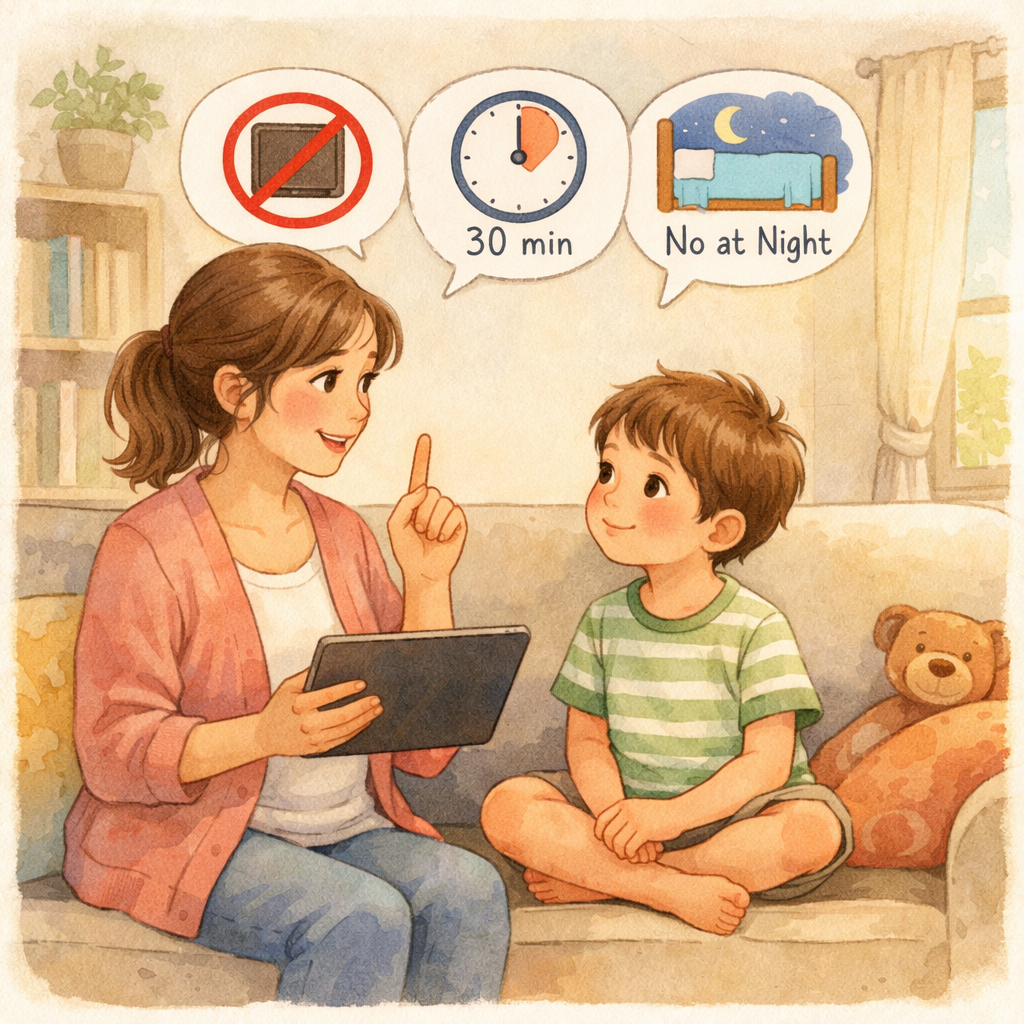
Tablets are excellent tools for learning and fun when used safely. Curate the device by downloading quality educational apps and games that foster creativity and problem-solving. Use web filters to block adult content and restrict browsing to approved sites.
Parents often ask, "Can I block internet access except for specific apps?" Yes—many parental controls let you allow internet only for chosen educational apps while blocking browsers and other online features, creating a focused learning environment.
Tips for safe tablet use:
- Review Apps Together: Check reviews and privacy policies before downloading.
- Set Privacy Restrictions: Limit data sharing in apps and on the device.
- Use Family Sharing: Manage purchases and share subscriptions securely.
- Restrict Game Center: Disable multiplayer and chat features for young kids.
- Talk About Safety: Teach children never to share personal information online.
Conclusion
In conclusion, establishing tablet access boundaries for children is essential for their overall well-being and development. By implementing effective strategies and utilizing parental controls, you can ensure that their screen time remains productive and safe. Encouraging a balanced approach to technology will not only protect them from potential risks but also promote healthy habits that can last a lifetime. As parents, it's crucial to stay informed and proactive in guiding your children towards responsible tablet use.
If you need personalized advice on managing your child's tablet access, feel free to reach out for a consultation or call daar at 02 9133 2500 to get started!
Frequently Asked Questions
How do I block my child from uninstalling apps on their tablet?
You can prevent app deletion through the parental control settings on your device. On an iPad, go to Screen Time > Content & Privacy Restrictions > iTunes & App Store Purchases and set "Deleting Apps" to "Don't Allow." Similar restrictions can be found in the privacy settings of many Android parental control apps.
Is there a way to let kids access only specific apps or videos?
Yes, you can. On iOS, "Guided Access" locks the device to a single app. On Android, "Screen Pinning" does the same. For more comprehensive control, parental controls settings in apps like Google Family Link let you approve or block specific apps and use content filtering to limit web content.
Can I block internet access except for select educational content?
Absolutely. Many parental control systems allow you to block the web browser while permitting specific apps to access the internet. You can use web filtering tools and content restrictions to create a "walled garden" of approved educational content, ensuring your child stays focused and safe on their Android device or iPad.
.svg)




.svg)