
.png?width=48&height=48&name=Group%201%20(3).png)























31 March, 2026

Best Ways to Restrict Kids’ Tablet Use for Safer Playtime
Key Highlights
- Parental controls are essential tools for managing your child's tablet use and ensuring a safer digital environment. Setting clear screen time limits helps balance digital media with other important activities like physical play and sleep. If you want your tablet to only play videos and prevent other interactions, many devices offer parental controls that let you restrict access to specific apps or functions. By setting up these controls and time limits, you can ensure your child can watch videos safely while staying within healthy screen time boundaries.
- Setting clear screen time limits helps balance digital media with other important activities like physical play and sleep.
- Both Apple and Android devices offer built-in features to set time limits and restrict access to inappropriate content.
- You can create kid-safe profiles and use internet filters to prevent children from accessing adult websites.
- Establishing a family media plan with consistent rules promotes healthy tech habits and open communication about online safety.
Introduction
Tablets are a fantastic tool for learning and entertainment, but it's natural to worry about how much screen time your child is getting. Finding the right balance is key to ensuring their digital experiences are positive and safe. The good news is that you have the power to guide their usage. Learning how to effectively manage your child’s screen time and set time limits on their tablet can transform playtime into a secure and healthy activity, giving you peace of mind.
Understanding the Importance of Restricting Kids’ Tablet Use
It's easy for kids to get lost in the vibrant world of tablets, but too much screen time can have its downsides. Unrestricted access might expose them to content that isn't age-appropriate or interfere with other essential activities. That’s why setting boundaries is so crucial for their well-being.
Using parental controls and having open conversations about digital habits can make a significant difference. By understanding why it’s important to limit how much screen time your child has, you can create a healthier relationship with technology for your whole family. Let’s explore the specific reasons why these limits matter.
Why Tablet Limits Matter for Child Development
Setting boundaries on tablet use is crucial for healthy child development. Too much screen time can harm physical health, limit active play, and hinder cognitive growth. It may also shorten attention spans, making it harder for kids to focus on tasks like reading or homework.
To protect your child’s well-being, combine strategies such as using parental controls, creating screen-free zones, and scheduling engaging offline activities. This balanced approach helps technology support—rather than disrupt—your child’s development.
Risks Associated With Unrestricted Tablet Use
Allowing your child to use a tablet without any restrictions opens the door to several potential risks. One of the biggest concerns is accidental exposure to inappropriate content. The internet is a vast space, and it's easy for a child to stumble upon violent, sexual, or otherwise adult material, even when using seemingly harmless apps or websites.
Another significant risk involves privacy and the sharing of personal information. Children may not understand the dangers of sharing their name, location, or other sensitive details online. This information could be misused by others or posted publicly in social media posts without their knowledge. Cybercriminals can also use malicious links in game chats to steal data.
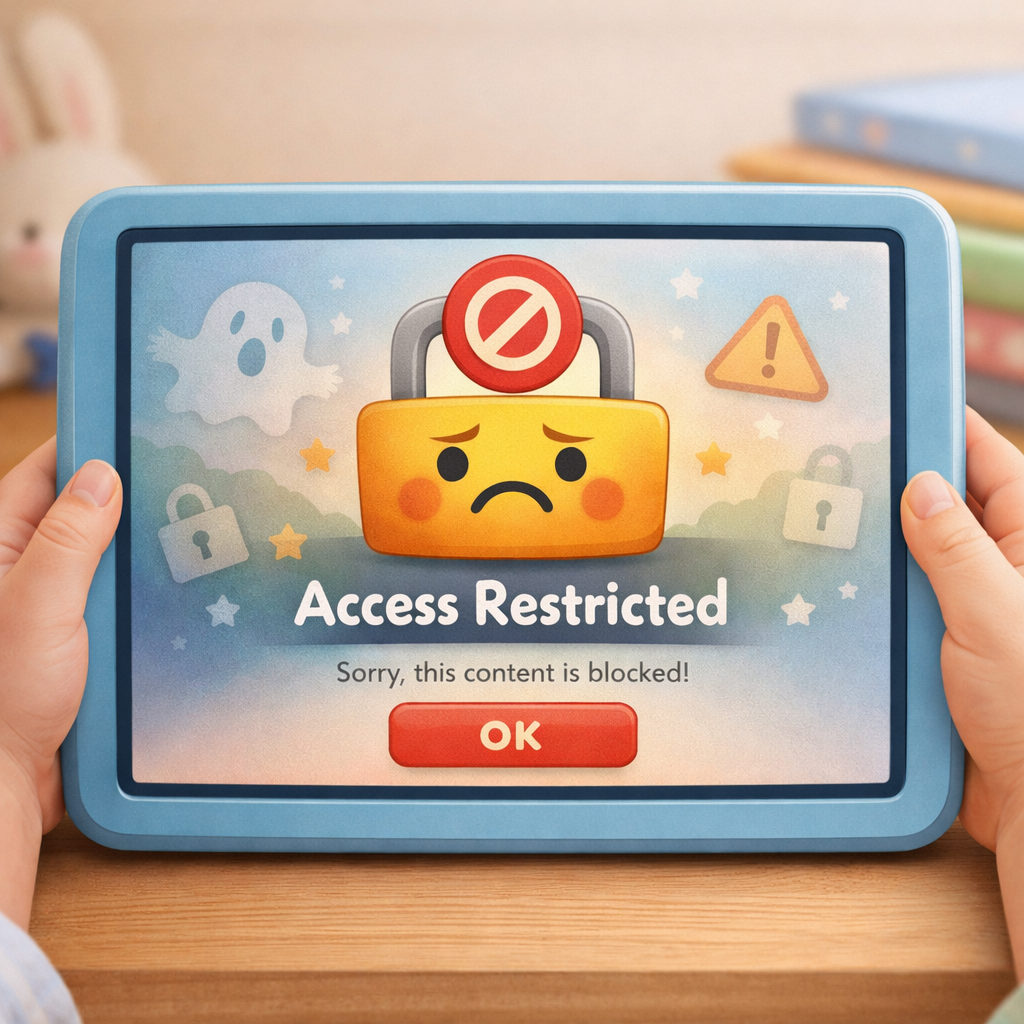
Preventing access to harmful content requires a proactive approach. You can use parental control settings on the device to filter web content, block specific apps, and restrict downloads. These tools are your first line of defense in creating a safer online environment where your child can explore, learn, and play without encountering material that isn't right for them.
Benefits of Controlled Screen Time for Australian Families
Setting controlled screen time offers many benefits for Australian families. It encourages healthy habits by setting boundaries that promote physical activity and in-person interactions. Resources like the American Academy of Pediatrics help parents set appropriate limits, allowing kids to explore activities beyond screens.
Parental control apps can also protect children from inappropriate content, creating a safer digital environment. Limiting screen time improves communication, boosts children's attention spans, and supports their overall well-being.
Identifying Age-Appropriate Tablet Use
What's considered healthy screen time for a toddler is very different from what’s appropriate for a ten-year-old. Tailoring your rules to your child's age and developmental stage is key to promoting their safety and well-being. This means selecting age-appropriate apps and content while actively blocking adult websites and other unsuitable material.
Understanding the recommended guidelines for different age groups helps you make informed decisions about your child’s digital life. Ensuring children’s safety online starts with setting realistic and suitable boundaries. Below, we'll look at specific recommendations for younger children and school-aged kids.
Guidelines for Young Children (Ages 2–6)
For children ages 2–6, tablet use should be limited and closely supervised. The American Academy of Pediatrics recommends co-viewing media to help kids understand what they're watching and to focus on quality educational content.
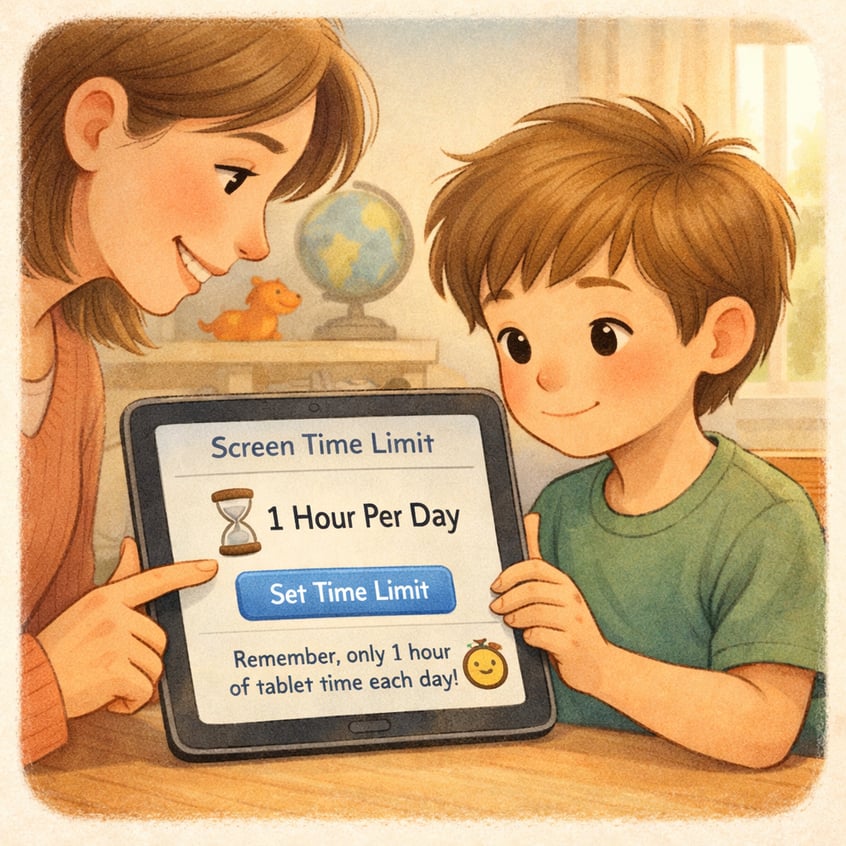
A family media plan sets clear rules from the start. Simple guidelines work best: choose specific times for tablet use, set firm daily limits (such as one hour), and stay consistent so your child learns to follow boundaries.
Easy screen time rules include:
- No screens during meals: Reserve mealtimes for conversation.
- Tablets off one hour before bedtime: Protects sleep routines.
- Educational apps only: Pre-approve all apps to ensure they’re beneficial.
Recommendations for School-Aged Kids
As children enter school, their media use often increases as they discover new games, videos, and social platforms. For school-aged kids, the American Academy of Pediatrics emphasizes balancing screen time with other healthy activities like homework, physical play, and sleep. There isn't a single magic number for the appropriate amount of time, as it depends on your child and your family's values.
A good approach is to work with your child to create a media plan that fits their schedule. This collaborative process can help them develop self-regulation skills. The goal is to ensure that their time online doesn't negatively impact their schoolwork, social life, or health. You should continue to monitor their media use and keep communication lines open.
Consider these guidelines for school-aged kids:
- Homework and chores first: Screen time should be a privilege earned after responsibilities are met.
- Keep devices in common areas: This makes it easier to supervise their online activities.
- Set daily time limits: Use parental control tools to enforce a consistent amount of time for entertainment media each day.
Signs of Excessive Use in Different Age Groups
It can be challenging to know if your child is spending too much time on their tablet. However, there are common signs to watch for that may indicate their screen time is becoming excessive. These signs can vary by age but often relate to changes in behavior, mood, and physical health. Paying attention to these cues can help you decide when it's time to adjust screen time settings and encourage other activities.
If you notice your child becoming irritable when asked to stop using their tablet, losing interest in activities they once enjoyed, or experiencing sleep problems, it might be a sign of overuse. A shortened attention span and complaints of headaches or eye strain are also red flags. Recognizing these issues early is the first step to helping your child build a healthier relationship with technology. If these signs appear, it's a good idea to limit screen time more strictly.
Here's a breakdown of common signs by age group: | Age Group | Signs of Excessive Tablet Use | |-----------|-----------------------------------------------------------------| | Toddlers (2–4) | Increased tantrums when tablet is taken away, poor sleep patterns, preference for tablet over toys or playing with others. | | Preschoolers (4–6) | Loss of interest in outdoor play, difficulty paying attention during non-screen activities, mimicking behaviors from shows/games. | | School-Aged (7–12) | Declining grades, lying about screen time, withdrawing from family and friends, neglecting homework or chores. |
Making iPads Safer for Children
Apple devices, including iPads and your child's iPhone, come with powerful built-in parental controls designed to create a safer user experience. These tools allow you to manage everything from how much time is spent on the device to what content can be accessed. By using these features, you can have greater peace of mind when your child is using their tablet.
Setting up these restrictions is straightforward once you know where to look. Using a unique screen time passcode ensures that your child can't change the settings you've put in place. Let’s look at how you can use Apple's features to make your child's iPad a more secure environment.
Apple Screen Time Features for Restriction
Apple’s Screen Time, found in Settings, lets you monitor and manage your child’s device use. You can set limits, schedule downtime, and block inappropriate content—all built into the iPad’s operating system.
During setup, you’ll create a separate four-digit Screen Time passcode to prevent changes. This allows you to set daily limits for app categories or individual apps for precise control.
Key features include:
- Downtime: Schedule periods (like bedtime) when most apps are inaccessible.
- App Limits: Set daily limits on categories or specific apps.
- Content & Privacy Restrictions: Block explicit content, restrict purchases, and manage privacy settings from one place.
Creating Kid-Safe User Profiles
Apple devices are designed for single users, while Android tablets let you create multiple profiles—ideal for families. You can set up a restricted profile for your child, keeping their apps and settings separate.
The best way to manage parental controls on Android is with Google Family Link. Create a Google account for your child, then use the Family Link app to remotely manage screen time, approve or block apps, set daily limits, and lock the device at bedtime.
Some Android tablets also allow direct setup of restricted user profiles via Settings > Users. From there, you can control which apps and content your child can access.
Limiting Access to Inappropriate Content
A top concern for parents is preventing children from accessing inappropriate content online. Both iOS and Android offer strong tools to manage and restrict internet access, helping ensure a safer browsing experience.
On iPad, go to Screen Time > Content & Privacy Restrictions > Content Restrictions > Web Content to limit adult sites or allow only approved websites. Android users can use Google Family Link to block explicit sites on Chrome and filter search results.
For added protection, consider third-party internet filters for your home network. Effective strategies include:
- Enable “Limit Adult Websites” on Apple devices.
- Use Google SafeSearch in Family Link to filter searches.
- Whitelist specific websites for a fully controlled browsing environment, ideal for young children.
Practical Tips to Reduce Tablet Screen Time at Home
Beyond just using parental control apps, creating a home environment that encourages less screen time is essential. The goal is to make non-digital activities just as appealing, if not more so, than a tablet. This involves being intentional about how your family spends time together and setting a positive example with your own device usage.
To reduce screen time effectively, it's helpful to establish clear and consistent rules that everyone in the family understands. Promoting family activities and creating screen-free zones are great ways to limit screen time naturally. Let’s explore some practical tips you can use to achieve a healthier tech balance at home.
Establishing Consistent Daily Limits
One of the most effective ways to manage your child's tablet use is by establishing consistent daily screen time limits. When rules are predictable, children know what to expect, which can reduce arguments and negotiations over device use. Using the built-in parental controls on your tablet is the easiest way to enforce these boundaries automatically.
When you set time limits, be specific about when and for how long your child can use their tablet. For example, you might allow one hour of screen time after homework is completed. You can also block the device during certain times of day, such as during meals and before bed, to protect family time and ensure a good night's sleep.
Here are a few steps to set effective limits:
- Use Parental Controls: Go into the device settings to set a total daily time limit for entertainment apps.
- Define Screen-Free Times: Clearly communicate the times of day when all screens should be put away.
- Be a Role Model: Stick to the rules yourself to show your child that everyone in the family is committed to a healthy tech balance.
Implementing Screen-Free Zones and Activities
Creating screen-free zones at home is an effective way to cut down on screen time. Designate areas like bedrooms and the dining room as tech-free to encourage face-to-face interaction and other activities. This prevents devices from disrupting sleep or family meals.
Adding these rules to your family media plan sets clear expectations. The goal isn’t to ban screens, but to create balance. When devices are out of sight, kids are more likely to read, play, or spend time outdoors.
Here are some tips:
- Bedroom Rule: Keep devices out of bedrooms for better sleep.
- Dinner Unplugged: Make the dinner table a no-screen zone.
- Active Fun: Schedule regular screen-free activities like bike rides, park visits, or board games.
Positive Reinforcement Strategies for Habit Change
Encouraging your child to use their tablet less doesn't have to be a constant battle. Using positive reinforcement can be far more effective than punitive measures. Instead of focusing on punishment for breaking rules, praise and reward your child for making good choices, like putting their tablet away without being asked or choosing to play outside instead.
Openly discussing the reasons behind screen time rules is also crucial. Frame your family agreements around shared goals like health, creativity, and family time. This approach promotes communication safety and helps your child feel like a trusted partner in the decision-making process. Providing helpful information about why balance is important can empower them to manage their own habits.
Here are some strategies to foster cooperation:
- Praise good behavior: Acknowledge when your child sticks to the rules without a fuss.
- Offer rewards: Create a simple reward system, like earning extra playtime for a week of following screen time limits.
- Focus on alternatives: Get excited about non-screen activities to make them more appealing than the tablet.
Creating Simple Screen Time Rules for Young Children
For young children, simplicity is key. Complicated rules are hard to remember and follow, so it's best to create a few straightforward guidelines. Establishing a family media plan with clear screen time limits helps set a foundation for healthy tech habits that can last a lifetime.
The focus should be on creating reasonable playtime windows and ensuring that any web content they access is safe and age-appropriate. By setting these boundaries early, you can make screen time a positive and controlled part of their day. Let's look at some simple but effective rules you can put in place.
Setting Reasonable Playtime Windows
Instead of allowing unlimited screen time, set specific playtime windows to structure your child’s day. Designate certain times for screens—such as 30 minutes after naptime or while you prepare dinner—to create predictability and reduce tantrums when devices need to be turned off.
Set age-appropriate time limits. For preschoolers, shorter, more frequent sessions are better than long stretches. The goal is to fit screen time into the daily routine without disrupting meals, outdoor play, or sleep.
Simple rules for playtime windows:
- No screens in the morning: Reserve mornings for getting ready without digital distractions.
- Set a timer: Use a visual timer so your child knows when screen time ends.
- Stick to the schedule: Be consistent with playtime windows each day to establish a routine.
Encouraging Balanced Use With Family Agreements
Creating family agreements is an effective way to set clear expectations for technology use. Involving children in making the rules helps them understand and respect the guidelines. A family media plan should outline expectations for everyone, not just kids.
This approach encourages open communication about online risks and responsible behavior. Agreements can include limits on screen time and rules about sharing personal information, showing that rules are fair and apply to all.
Consistency is key—enforce consequences calmly and predictably. When you follow the rules yourself, your child is more likely to do the same.
The “777 Rule” and Other Helpful Guidelines

Every family needs to find what works for them, but structured guidelines can help. The "777 rule" is a simple framework: 7 hours of sleep, 7 hours of school or work, and 7 hours of downtime (including play, chores, and limited screen time).
This easy-to-remember rule isn't strict but helps ensure screen time doesn't take over your child's free time. The aim is a balanced lifestyle where technology has its place.
Ultimately, the best guidelines fit your family's values and your child's needs. Whether you use the "777 rule" or create your own system, having clear guidelines removes guesswork and supports a healthy digital routine.
Conclusion
In conclusion, managing your kids' tablet use is essential for their development and overall well-being. By understanding the importance of screen time limits and implementing practical strategies, you can create a healthier playtime environment. Establishing consistent daily limits, encouraging screen-free zones, and fostering positive reinforcement can help your children develop a balanced relationship with technology. Remember, the goal is not to eliminate screen time but to ensure it's used wisely and safely.
If you're looking for more personalized strategies, reach out to us for a consultation or call daar at 02 9133 2500, and let’s work together to promote healthier habits for your family!
Frequently Asked Questions
What’s the best parental control app for tablets in Australia?
For many families, the built-in parental controls like Apple's Screen Time and Google Family Link are the best options because they are free and effective. For more advanced features, a third-party parental control app like Qustodio or Kaspersky Safe Kids can offer additional monitoring and filtering capabilities to enhance your child's online safety.
How can I make a tablet automatically turn off after a set time?
You can use the built-in parental control features on both Apple and Android devices. In the screen time settings, you can set daily time limits for all apps or specific categories. Once the time is up, the apps will be blocked automatically, requiring a screen time passcode to continue using them.
Is there a way to block specific websites or apps on my child’s tablet?
Yes, absolutely. Both Apple's Screen Time and Google Family Link allow you to block specific apps you don't want your child to use. You can also use the web content settings and internet filters to block access to certain websites or prevent them from seeing inappropriate content online.
.svg)




.svg)